![logo-canvas.png]](https://tartanfaq.scotlandshop.com/hs-fs/hubfs/logo-canvas.png?height=20&name=logo-canvas.png)
To begin, create an order under your customers name. (They will get a confirmation receipt emailed to them once this order goes live so bear this in mind. If you do not want the customer to see this then it is recommended to speak to the Stock team, whom can set up a Manaul Purchase Order for the alteration for you.)
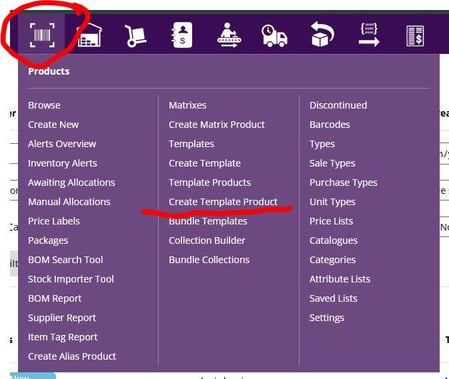
Once you have the order set up for your customer in Tracker - navigate to Products > Create Template Product
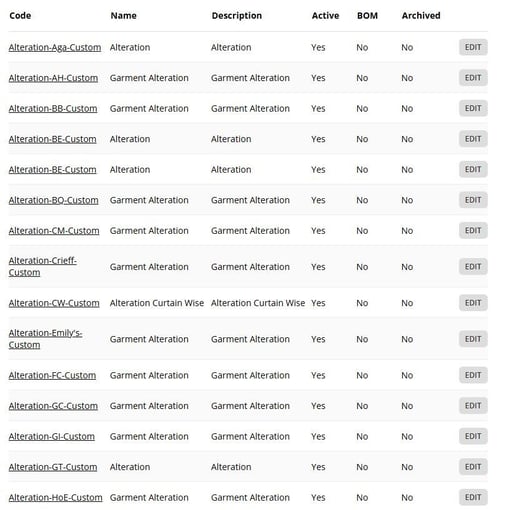
We have an alteration template set up for most suppliers. It's set up as their initials, so for example "HoE" at the bottom is House of Edgar, above that is Gaelic Themes, above that is Glen Isla etc.
Select the appropriate supplier and Create Template Product. Follow the steps adding the tartan, you can also add the product to this line as well, or change the parent name to the product you're having altered.
Once created, you can add this line to your customers order and add the details of what's being altered to the line notes.
PICTURE NEEDING ADDED
Once that is done, set your order live and the alteration Purchase Order, for the supplier, will be available to be created from Inventory Demands.
PICTURE NEEDING ADDED
Once the Purchase Order is created, copy any relevant notes across so the supplier knows what they're doing. Set the completion date on the front of the Purchase Order so the supplier knows when to have it ready.
If you're happy with how it looks, set the Purchase Order live and mail it to the supplier if appropriate.
Print off the Purchase Order and couple this with the item you're returning for alteration and you should be done!
NOTES;
If your alteration requires a length of cloth please speak to a member of the stock team whom can arrange this for you.